
_a9c1b4.png)
_49ee3f.png)

Paul
Administrators
-
Joined
-
Last visited
Everything posted by Paul
-
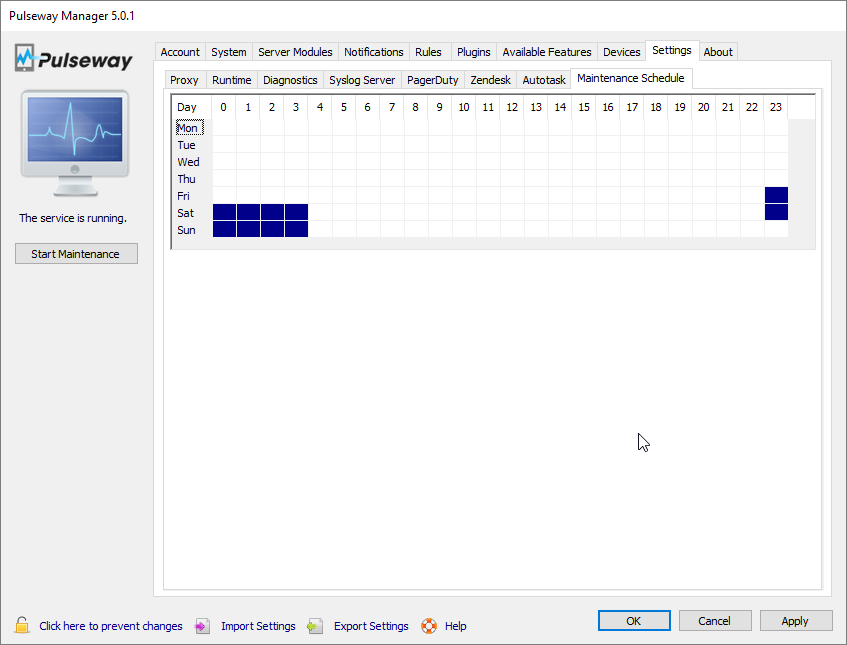
Hi Christian, The image bellow shows how to setup an agent to go into the maintenance mode on Friday and Saturday between 11PM and 4AM: -Paul
-
We don't count optional windows updates in our reports at this moment but this would be awesome to have. Thanks. -Paul
-
You could make use of the Maintenance Schedule from the Pulseway Manager in the Settings tab, Maintenance Schedule subtab. This schedule is also configurable from a Pulseway Group Policy. -Paul
-
This is confirmed to be coming over here: Once we have the settings on the webapp, we will also help you get a better understanding which settings are overridden by a Pulseway Group Policy and offline changes will become supported at the same time. -Paul
-
Hi Phil, Thank you for your feedback. We're trying to make things easier by implementing some features on the mobile app as well (Scope editing is now available on iOS and it's coming for Android too). Running scripts per group is on our todo list so we'll be adding this but group terminal is going to be tricky because you will want to see the output for that command as well. We'll investigate what are the implications for that. More AV control from the mobile app is also coming, install, uninstall, change policy and browse active events for individual machines. -Paul
-
We will not be removing the timeout on the webapp for security purposes. We are considering on implementing a way to gradually slow down the refresh timer to a point where it stops and asks if you're still around but not logging you out only after a couple of hours. -Paul
-
-
This would be one of those 'magic' features . Each hardware manufacturer has it's own way of delivering driver updates and there is no 'universal' driver store where you can check for updates. -Paul
-
Cool, let me know how it goes. -Paul
-
No problem. It's nice knowing that I'm not going crazy . -Paul
-
I have a big deja-vu on this topic, did you post it in two forums by any chance? I feel like I've answered it already. If not, here it goes again: While we don't support sorting the columns in tables, most of them have a custom context menu so you can right click on the table to select automatically started services and other options for other tables. -Paul
-
Oh yes, we're dead serious on moving the agent configuration to the webapp (along with the policies) so this is surely happening in the future. -Paul
-
Thanks, I've added to our todo list. -Paul
-
So hardware configuration will suffice then. This is very good feedback, thanks. If we add this we will be able to also support notifying you when the hardware changes which would be awesome. -Paul
-
That's very good. Thanks. -Paul
-
Check out this blog post as it describes the use of tags and scopes. -Paul
-
Thank you for your feedback. This will help us a lot as we're making plans for the web dashboard. -Paul
-
Welcome to the Pulseway community! We're going to implement the RD first on the webapp and then we're going to make plans on having it on the mobile apps. I reckon iOS is going to be first. -Paul
-
Hi, We actually have this scheduled for the end of Q1 beginning of Q2 so we can say that this is definitely coming. -Paul
-
Hi Christian, It's indeed useful to sort services by the column names however in the mean time try to right click on the tables as we have a custom context menu on most of them. -Paul
-
Hi Jimmy, We are considering on ways to make all Pulseway commands to support delayed execution but in the mean time try using this plugin: -Paul
-
Thanks for letting me know. Glad to hear it works now. -Paul
-
-
Hi Christian, Unfortunately we don't have any best practices for the AV solution as we don't provide any for the RMM / PSA. The reason behind this is that each deployment is unique and the configuration should be specific to that environment to ensure the best performance. A good example would be a SQL Server machine where you would want to exclude from scan the Data and Log mount points in order to avoid the AV product from introducing IO delays while it scans. -Paul
-
Hi there, We've noticed that this can happen of machines that are under heavy load during startup. A better solution would be to increase the service start timeout to 2 minutes. -Paul