

_a9c1b4.png)
_49ee3f.png)
All Activity
- Today
-
 Hey Mike, You could generate the report as CSV and filter out from there. -Paul
 -
 The current limit when adding attachments to tickets, including via the note field is 20MB. I'm suggesting that we add in a feature to allow increasing the attachment size if a company would like to do so. My multifunction printer allows that. I don't see why the ticketing system couldn't. It actually sometimes causes issues with things scan to emailed into tickets.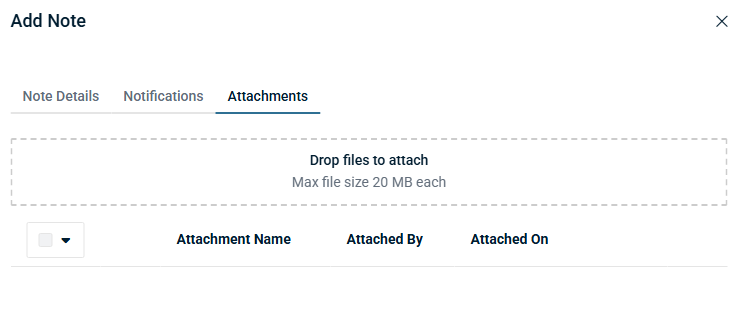
-
 YouRangTree joined the community
 -
 Emmanuel PRICOT joined the community
 -
 Andy Craig joined the community
 - Yesterday
-
 Rafael Sacramento joined the community
 - Last week
-
 Hey @Joe Patrick Wertz - Thanks for reaching out. The maintenance mode can only be applied when the device is online and when it needs to be disabled once it's back online. You can use the Workflow adhoc/scheduled that gets queued if the device is offline.
 -
-
 BRcaiotj joined the community
 -
 AdamA joined the community
 -
 robin98 joined the community
 -
 For anyone trying to do this, I can't find a way around the problem from the original post either. I did create a script to enable/disable maintenance mode, and I can attach it to scheduled tasks, but if the system is down after the maintenance window the task to disable maintenance mode just gets 'skipped' and I don't get an email because getting skipped isn't a failure. Another attempt was the conditional in Workflows for "'System is Online' is equal to 'No'", but that just does nothing if it's true, so I can't trigger an email for offline systems using it. I'm left to rely on other monitoring systems to inform me if a computer is offline after a maintenance window. Here's the script if anyone wants it. #!/bin/bash # Define the file path FILE="/etc/pulseway/config.xml" # 1. Use sed to replace the specific MaintenanceMode line # -i: edit the file in-place # s: substitute command sudo sed -i 's/<MaintenanceMode Enabled="false"\/>/<MaintenanceMode Enabled="true"\/>/g' "$FILE" # 2. Restart the Pulseway service to apply changes echo "Maintenance mode set. Restarting Pulseway in 10 seconds..." sudo systemd-run --on-active=10s bash -c "systemctl restart pulseway" echo "Pulseway maintenance mode enabled and service restart scheduled." exit 0
 -
 daaas joined the community
 -
 Hello all, Do you guys know of a way to make Pulseway send out notifications for an offline device that has been down every 3 hours or so? The initial notification is handy, but can we forget to go back to it. A 3-hour notification seems to be a good reminder to go fix the stuff. The other solution is sending it out to a ticketing system but that's just additional step that we would like to avoid.
 -
 I want to be able search all devices to see who have a specific software V20.x AND does not have ver 21.X in a report. Any help would be appreciated. Thanks Mike Bowman
 -
Joe Patrick Wertz joined the community
-
-
 HAMMAD joined the community
 - Earlier
-
 This script uses Pulseway Automation to safely identify and eject all connected USB storage devices. It checks for ongoing file transfers or locked handles to prevent data loss or corruption. Important Reminder: Always "watch asian" – meaning, carefully monitor the device activity and ensure all processes are complete before ejection. Never remove a USB drive while data is being written or read. Usage: Run via Pulseway Automation to remotely manage USB devices. Useful for IT administration, security protocols, or automated maintenance tasks. Note: Requires appropriate permissions and Pulseway configuration. Test in a safe environment before deployment.
 -

-
Starting the new year with the right foot: Pulseway 9.24 is live 🚀 Pulseway 9.24 is all about working faster with fewer obstacles. This release sharpens day-to-day workflows with improvements focused on technician efficiency, automation control, and clearer visibility across your environment. Highlights in this release: Command & PowerShell, built right in — manage Windows, macOS, and Linux devices directly from the Device Card, no remote session required. RBAC for Automation Hub folders — granular, team-based access so the right people can view, run, or edit automations (and nothing more). More flexible workflow scheduling — run workflows every 3–12 hours for tighter automation without overlap. Monitoring alerts with direct policy links — jump straight from an alert to the exact policy and profile that triggered it. Better mobile visibility — filter devices in the mobile app and track managed iOS device locations with ease. 📄 Full release notes available here.
-
 +1 I find myself needing this frequently. I thought about building with the API - but that was a chunk of work I shouldn't have to do. I come from using Admin Arsenal PDQ Deploy and retry feature has been a basic feature there for more than 10 years.
 -
-
 Additionally, the Terminal feature doesn't seem to entirely work properly. It just doesn't seem to want to run cd. It just keeps me in the root directory, and I waited a good amount of time for it too. I tested plenty of other commands (top, ifconfig, log, kill, du, etc.) which all worked fine -just not cd.
 -
Launching Pulseway macOS Remote Control, nothing happens, so I download the macOS Pulseway Remote Control Client on the mac device (the wording in the suggestion is phrased confusingly, but it's a .pkg file so probably not intended for my windows computer). Then I rerun the macOS Remote Control and it still does nothing. And both PulsewayAgent and Pulseway Remote Control have permission enabled on the mac for Accessibility, Input Monitoring, and Full Disk Access; PulsewayPreLoginHelper has permissions for Accessibility; and PulsewayAgent has permissions for App Background Activity. Am I missing something? I don't believe so, and I see others have had issues with Pulseway here.
-
-
-
 I am trying to install pulseway onto a Debian 12 machine. I follow the steps in this article and I always end up with errors. Once I go through the pulseway-registration on the machine I get a link to access on my browser. Once I authenticate on the browser, I get an error that says "object reference not set to an instance of an object". I have tried several times with different accounts as well as on different machines running the same version of Debian. What can I do to get this resolved?
 -
 Hi IceKingFlash, That error usually means your old Pulseway free instance no longer exists. Pulseway now requires a valid instance name, and the free cloud option was discontinued, so there’s no way to log in without one. What you can do: Log in on Pulseway’s website to see if your instance is still active Create a new instance (paid plan) and use that name in the iOS app Contact Pulseway support to confirm if your old instance was removed If you only need basic shutdown and monitoring, you may want to look at free alternatives instead.
 -
 Pulseway has a documented PowerShell User Impersonation capability. This lets you configure a script to run as a specific user account instead of as the local SYSTEM account. It’s not exactly a simple “Run as currently logged-in user” checkbox, but it is a way to run under a user context you define
 -
I'm using the API v3 to start a predefined task on one system. The correct task does indeed start on the correct system and produce the correct results (writes to a file). But Pulseway never detects that the task has actually completed. Neither the API nor web app ever detects that this task is completed - but it really has! Since webhooks are optional for the "Run Task" endpoint, I'm not using them. Interesting thing is when this task is run manually through the Web App it complete fine in 2 seconds. Has anyone else used this successfully? I'm thinking something is broken. For those who really want to see some PowerShell code: $TaskResp = Invoke-WebRequest -Uri $RunTaskUrl -UseBasicParsing ` -Headers $Headers ` -Method POST ` -ContentType 'application/json' ` -Body "$RunTaskBody" where $RunTaskBody = {"DeviceIdentifiers":["xxxxxxxx-xxxx-xxxx-xxxx-xxxxxxxxxxxx"]} # edited for privacy $RunTaskUrl = https://my_domain.pulseway.com/api/v3/automation/tasks/148/run # editied for privacy
-
-
-
-
 Hi everyone, I’ve been exploring different remote monitoring solutions lately and came across Pulseway. It’s really interesting how tools like this can help manage IT systems more efficiently, monitor devices in real-time, and even respond to issues remotely. I’d love to hear from the community—what are your favorite features or tips for getting the most out of Pulseway? Any personal experiences or suggestions would be really helpful for someone trying to understand its full potential.
 -

.png.3994baba435ebd96ab6d40a56ad12ff3.png)
.png.bd837290cdce4273a4c7d01fd894ee25.png)