_a9c1b4.png)
_49ee3f.png)
Search the Community
Showing results for 'how to powershell'.
Found 429 results
-
 Hi everyone, I wanted to share a simple PowerShell script that you can use within Pulseway Automation to remotely eject any USB storage devices connected to a system. This can be helpful for security-conscious environments or in scenarios where USB usage needs to be tightly controlled. Works well in combination with the Disable USB Storage Access script in the built in category. The script uses Shell.Application to trigger the native "Eject" action for removable drives (DriveType = 2). Here's the version that loops through all mounted USB volumes: ✅ Works great in Pulseway automation tasks 💡 You can modify it to eject a specific drive letter if needed powershell # Eject all USB volumes using Shell.Application COM object $Eject = New-Object -ComObject Shell.Application # Get all removable (DriveType = 2) volumes with drive letters $volumes = Get-WmiObject -Class Win32_Volume | Where-Object { $_.DriveType -eq 2 -and $_.DriveLetter } foreach ($vol in $volumes) { Write-Host "Ejecting drive $($vol.DriveLetter)..." $Eject.NameSpace(17).ParseName($vol.DriveLetter).InvokeVerb("Eject") } Notes: During my testing, I've seen that USB devices will not be removed if a process is running from the disks in question. In other words, if there is a write/read process running, the disk is not ejected. Let me know if you have questions or enhancements!
 -
 Hey @josheld_65 - Thanks for reaching out! To enable Legacy Mode, run the below Powershell script and open Pulseway manager. Set-ItemProperty -Path "HKLM:\Software\MMSOFT Design\PC Monitor\" AgentLegacyMode -Value 1 Hope this helps 😊
 -
 Hello Pulseway Support, I am currently using the Pulseway Task module to execute PowerShell scripts. My scripts require PowerShell 7 (pwsh.exe) to function properly, as certain modules like HuduAPI are not supported in PowerShell 5.1. However, when I attempt to run scripts that rely on PowerShell 7 functionality, they default to PowerShell 5.1, resulting in compatibility issues and failures. I would like to request guidance on how to: Configure Pulseway to explicitly run scripts using PowerShell 7 (pwsh.exe). Verify if the Pulseway PowerShell module supports PowerShell 7, and if not, what workaround or timeline is available to ensure compatibility. Please let me know how I can resolve this issue or if Pulseway tasks can be configured to execute PowerShell 7 scripts ( Powershell 7 is installed at the endpoints and the script executes as expected locally). Thank you for your support. Best regards,
 -
 This script below runs find when ran locally. When I use it in pulseway it doesnt work. This is what I get as an error message. Can someone help me please. Thanks, Output At C:\Program Files\Pulseway\automation_6d035661_a3a3_4e34_b6c2_8e997a18878a.ps1:5 char:149 + ... owsdesktop-runtime-6.0.24-win-x64.exe" -wait -ArgumentList '/S /v/qn' + ~ You must provide a value expression following the '/' operator. At C:\Program Files\Pulseway\automation_6d035661_a3a3_4e34_b6c2_8e997a18878a.ps1:5 char:149 + ... owsdesktop-runtime-6.0.24-win-x64.exe" -wait -ArgumentList '/S /v/qn' + ~ Unexpected token 'S' in expression or statement. At C:\Program Files\Pulseway\automation_6d035661_a3a3_4e34_b6c2_8e997a18878a.ps1:17 char:212 + ... portAssistConfiguration.mst" DEPLOYMENTKEY="855asd$#" /norestart /qn' + ~ The string is missing the terminator: '. + CategoryInfo : ParserError: (:) [], ParentContainsErrorRecordException + FullyQualifiedErrorId : ExpectedValueExpression #Runs file from Fileserv01 if it can $folder = '\\Fileserv01\Public\IT\Software\DellSupport For Business\SupportAssist.bat if (Test-Path -Path $folder) { PowerShell.exe -ExecutionPolicy Bypass -File "\\Fileserv01\Public\IT\Software\DellSupport For Business\SupportAssistCleanup.ps1" Start-Process -FilePath "\\Fileserv01\Public\IT\Software\DellSupport For Business\windowsdesktop-runtime-6.0.24-win-x64.exe" -wait -ArgumentList '/S /v/qn' Start-Process msiexec -wait -argumentlist '/i "\\Fileserv01\Public\IT\Software\DellSupport For Business\SupportAssistInstaller-x64.msi" TRANSFORMS="\\Fileserv01\Public\IT\Software\DellSupport For Business\SupportAssistConfiguration.mst" DEPLOYMENTKEY="855asd$#" /norestart /qn' } else { New-Item -path "C:\Temp\SupportBusiness -Itemtype Directory Invoke-WebRequest -Uri "https://www.dropbox.com/scl/fi/nxdsz42jkcu5ss4tpdsvf/SupportAssistCleanup.ps1?rlkey=lidz0ms8aatgwhiv8dtvxr6dw&dl=1" -Destination "c:\temp\SupportBusiness\SupportAssistCleanup.ps1" Invoke-WebRequest -Uri "https://www.dropbox.com/scl/fi/j75w4oqajfbjpw2sdrpxg/SupportAssistConfiguration.mst?rlkey=he4shs9vzts47reav8d5ziv6x&dl=1" -Destination "c:\temp\SupportBusiness\SupportAssistConfiguration.mst" Invoke-WebRequest -Uri "https://www.dropbox.com/scl/fi/cuyvomxuui4z29bpk9x2r/SupportAssistInstaller-x64.msi?rlkey=g1lmxvprpb0nv1wxvtefwizii&dl=1" -Destination "c:\temp\SupportBusiness\SupportAssistInstaller-x64.msi" Invoke-WebRequest -Uri "https://www.dropbox.com/scl/fi/p7ctmo837kv9cnsyi6779/windowsdesktop-runtime-6.0.24-win-x64.exe?rlkey=e0ehydmwf1t86bu461b3xp1t9&dl=1" -Destination "c:\temp\SupportBusiness\windowsdesktop-runtime-6.0.24-win-x64.exe" PowerShell.exe -ExecutionPolicy Bypass -File "c:\temp\SupportBusiness\SupportAssistCleanup.ps1" Start-Process -FilePath "\\Fileserv01\Public\IT\Software\DellSupport For Business\windowsdesktop-runtime-6.0.24-win-x64.exe" -wait -ArgumentList '/S /v/qn' Start-Process -FilePath "c:\temp\SupportBusiness\windowsdesktop-runtime-6.0.24-win-x64.exe" -wait -ArgumentList '/S /v/qn' Start-Process msiexec -wait -argumentlist '/i "c:\temp\SupportBusiness\SupportAssistInstaller-x64.msi" TRANSFORMS="c:\temp\SupportBusiness\SupportAssistConfiguration.mst" DEPLOYMENTKEY="855asd$#" /norestart /qn' #Removes Folder after install Remove-Item "c:\temp\SupportBusiness" -recurse }
 -
 HI All, I am trying to enable SSO on my endpoint running Windows 10 x64 by running the below PowerShell Script through Pulseway RMM, however the Task runs successfully, but does not execute on the computer and doesn't give me any errors. I have however ran the script on Windows PowerShell ISE locally on the computer and it executes without any problems. Please can someone help me understand why this script will not execute on the endpoint via Pulseway RMM. i have however ran other scripts on my test machine and they work, but for some reason this one doesn't seem to want to execute. PowerShell Script: # Set variables to indicate value and key to set $RegistryPath = 'HKCU:\Software\Microsoft\Windows\CurrentVersion\Internet Settings\ZoneMap\Domains\microsoftazuread-sso.com\autologon' $Name = 'https' $Value = '1' $Path = 'HKCU:\Software\Microsoft\Windows\CurrentVersion\Internet Settings\ZoneMap\Domains\microsoftazuread-sso.com\autologon' # Create the keys if it does not exist If (-NOT (Test-Path $RegistryPath)) { New-Item -Path "$Path" -Force | Out-Null } # Now set the value New-ItemProperty -Path $RegistryPath -Name $Name -Value $Value -PropertyType DWORD -Force
 -
 I found a PowerShell script that checks if the machine can run Windows 11. I can see the output in Pulseway after it runs when I click on the execution option. But I would like to run it for all of the customers machines and get the output all at once. Is there an easy way to do this in Pulseway automation?
 -
 Hi Guys, I've cobbled together a workflow using Powershell that looks at membership of the local Administrators group and that output is emailed to me. That's gone without issue but I want to refine it and that's where I'm struggling. So I know that in our case, every machine's local admin group has some membership, i.e. the local admin account and our domain admins group. I want to filter these machines out and have email results for only those where there's anything more than those "defaults". Get-LocalGroupMember -Group 'Administrators' | Where-Object {$_.PrincipalSource -ne 'Local' -and $_.Name -ne 'MyDomain\Administrator' -and $_.Name -ne 'MyDomain\Domain Admins'} | Select-Object -Property 'Name','PrincipalSource' This code works locally and using Pulseway's remote Powershell function. What I was hoping to do was to basically skip a system if the output of the code was blank or null. For systems where I haven't received any output back when using Pulseway's Powershell, I guess I don't know if the output is actually completely empty or not. I also don't know if using Pulseway's variable function is considered separately to the Powershell environment the code gets run in, if that makes sense? When I try to run the workflow on a single machine I always get emailed the results, even when the return from the Powershell is blank. I'm not brilliant with Powershell so have been searching around for alternatives. I was wondering about return codes perhaps but could I also put these into a Pulseway workflow?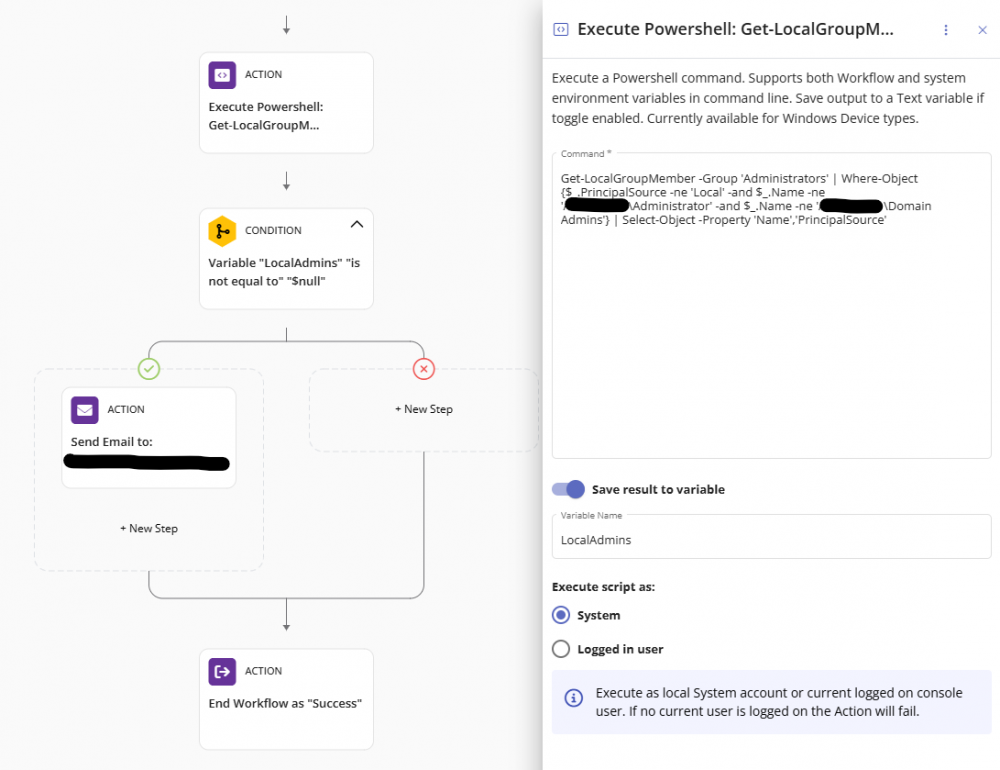
-

-
 Hi, I have created a powershell script to activate a specific screensaver, password enable it and set the idle timeout value, but it does not work when I try to run it from the PulseWay Web interface. I have also tried it from a batch script, but it does not work either. Both scripts work fine when running them directly from the local computer. The Powershell script it as follows: #Values to customize $ScreenSaveActive = 1 #set to 1 if you want the screensaver enabled, 0 to disable $TimeOutValue = 60 # number of idle seconds before screensaver gets active $ScreenSaverFile = "C:\Windows\system32\mystify.scr" # full path to screensaver file $ScreenSaverIsSecure = 1 # set to 1 if you need a password to get out of screensaver, a.k.a. unlocking the pc #If the screensaver is not compliant with $ScreenSaveActive, we reset it to the preferred value if((Get-ItemProperty -Path "hkcu:control panel\desktop" -Name "ScreenSaveActive").ScreenSaveActive -ne $ScreenSaveActive) { Set-ItemProperty -Path "hkcu:control panel\desktop" -Name "ScreenSaveActive" -Value $ScreenSaveActive } #If user set screensaver timeout to a value larger than 1200 seconds (20 minutes), we set the value back to 1200 seconds [int]$Current_TimeOutValue = (Get-ItemProperty -Path "hkcu:control panel\desktop" -Name "ScreenSaveTimeOut").ScreenSaveTimeOut if($Current_TimeOutValue -eq 0 -OR $Current_TimeOutValue -gt 1200) { Set-ItemProperty -Path "hkcu:control panel\desktop" -Name "ScreenSaveTimeOut" -value 1200 } #If no screensaver file is set or if the path doesn't exist anymore, we set it to the blank screensaver $Current_ScreenSaverFile = (Get-ItemProperty -Path "hkcu:control panel\desktop" -Name "SCRNSAVE.EXE")."SCRNSAVE.EXE" if($Current_ScreenSaverFile -eq "" -OR (Test-Path $Current_ScreenSaverFile) -eq $false) { Set-ItemProperty -Path "hkcu:control panel\desktop" -Name "SCRNSAVE.EXE" -Value $ScreenSaverFile } #If the screensaver "lock" is not compliant with $ScreenSaverIsSecure, we reset it to the preferred value if((Get-ItemProperty -Path "hkcu:control panel\desktop" -Name "ScreenSaverIsSecure").ScreenSaverIsSecure -ne $ScreenSaverIsSecure) { Set-ItemProperty -Path "hkcu:control panel\desktop" -Name "ScreenSaverIsSecure" -Value $ScreenSaverIsSecure } #Before our changes become active in the current Windows session, we need to run the following command more than 3 times for ($i=1; $i -le 4; $i++) { rundll32.exe user32.dll, UpdatePerUserSystemParameters } I have also tried this from batch script, but it does not work either. @echo off reg add "HKEY_CURRENT_USER\Control Panel\Desktop" /v SCRNSAVE.EXE /t REG_SZ /d C:\Windows\System32\Mystify.scr /f reg add "HKEY_CURRENT_USER\Control Panel\Desktop" /v ScreenSaveActive /t REG_SZ /d 1 /f reg add "HKEY_CURRENT_USER\Control Panel\Desktop" /v ScreenSaveTimeOut /t REG_SZ /d 60 /f reg add "HKEY_CURRENT_USER\Control Panel\Desktop" /v ScreenSaverIsSecure /t REG_SZ /d 1 /f
 -
 Hello All, I am attempting to install puslway by using a powershell script. what i am trying to acomplish is being able to have a way to run a script against a windows machine either via intune or A provisioning package to install pulsway during New deivce provisioning. I have a way to do the install using an MSI file but im worried about the installer expiring, so i was trying to find a way to install pulsway using the installer link which does not expire. Thanks for any help you can provide.
 -
 Deze script werkt als het gerunt is van een user account maar niet vanuit pulseway. $password = ConvertTo-SecureString "your_password" -AsPlainText -Force $credentials = New-Object System.Management.Automation.PSCredential("your_username", $password) $scriptBlock = { Start-Process powershell -Verb RunAs Write-Host "Running with elevated privileges!" } $encodedCommand = [Convert]::ToBase64String([Text.Encoding]::Unicode.GetBytes($scriptBlock)) Start-Process powershell.exe -ArgumentList "-NoProfile -EncodedCommand $encodedCommand" -Credential $credentials
 -
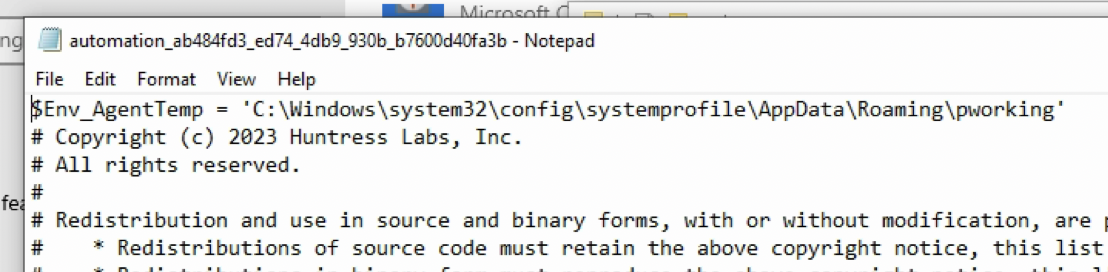
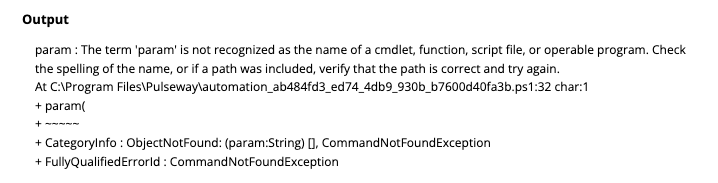
 Up until the most recent update to Pulseway, I was able to install the Huntress agent via their provided Powershell script at: https://github.com/huntresslabs/deployment-scripts/blob/main/Powershell/InstallHuntress.powershellv2.ps1 This script includes the "param" command, which has to be the first line of the script in order to run. After the recent update to Pulseway, all scripts that are run add an $ENV_AgentTemp variable to the top of the script, see screenshot below: This prevents the script from running correctly, see screenshot below of the error: Please note that the powershell output shows the error on line 32, whereas in the script it is on line 31, which is what led me on the path to find that the extra line was being added at the top of the script by Pulseway. Is there a way to prevent that first line from being added to the script, or do I need to contact Huntress and have them rework a different version of the script that doesn't include the "param" command? Cheers.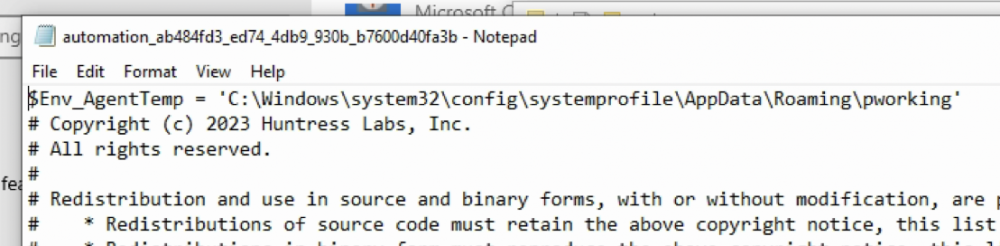
-
 HI Team Is there a way to remotely enable/disable notifications for a specific endpoint via the Admin Console (mydomain.pulseway.com/app/main/systems/{system_id}/details) under Manage > Execute Powershell? I want to disable the "Send notification when computer is offline" but is there a way i can do it with remote powershell/scripting without logging into the computer?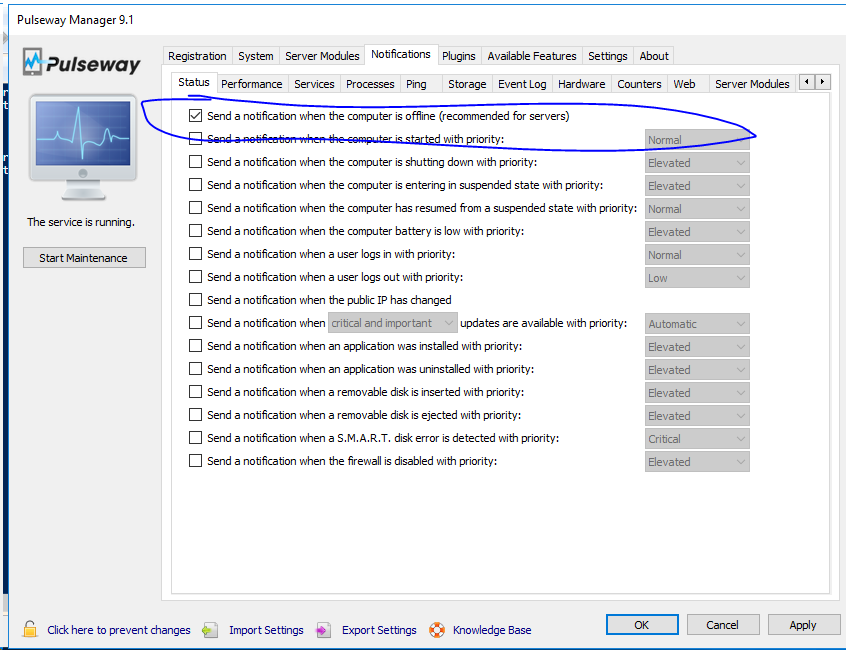
-
 I want to add the below PowerShell command into Pulseway script, any help with creating or articles would be great. Powershell cd HKLM:\ New-Item -Path "SOFTWARE\Policies\" -Name "Google" New-Item -Path "SOFTWARE\Policies\Google\" -Name "Chrome" cd HKLM:\ New-ItemProperty -Path SOFTWARE\Policies\Google\Chrome -Name "IntensiveWakeUpThrottlingEnabled" -Value "0" -PropertyType "DWord" New-ItemProperty -Path SOFTWARE\Policies\Google\Chrome -Name "WindowOcclusionEnabled" -Value "0" -PropertyType "DWord"
 -
 Is there a way to force use of Powershell 7.2 when running powershell scripts in Pulseway?
 -
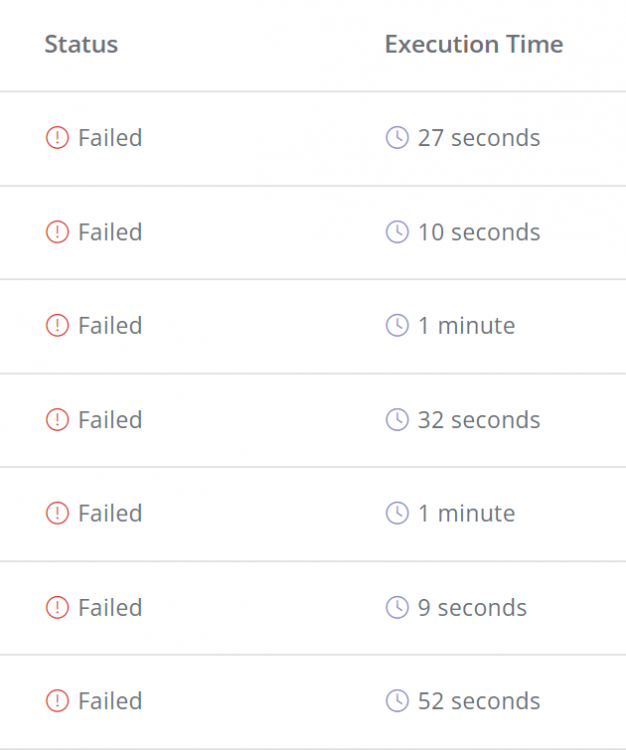
 So, I have been using the workflow automation to much sucess. I have one activating script upon logon. It used to work wonderfully even though every time it ran it reported "Failed" in workflow status. It seems that my PowerShell scripts hang up the workflow. These two scripts write back to custom variables on each machine when they run. I just tested and it does not seem to matter whether the custom variable code snippet is in the script or not. It is not possible to successfully run a workflow with any steps after a PowerShell script currently. Does anyone have any way to fix this, I tried adding "exit" at the end and that didn't help. I'm also going to contact support and see what they say. -Hayley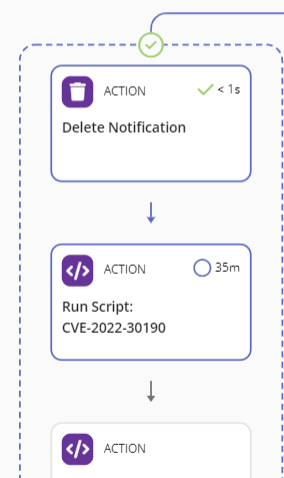
-
 Hi, My requirement is to monitor hardware components in a server using the REST API and Powershell. Currently I'm working at Fujitsu servers and I'm able to get the necessary monitoring information to Powershell objects from Fujitsu iRMC (Baseboard Management Controller) using the REST API. However, proceeding from here is the issue. I want to know how to feed the queried information to Pulseway and generate notifications based on the thresholds that will be defined. Based on the research I've done it seems like I need to create a plugin and add it to the Pulseway Manager. (Not 100% sure about this) Could you please help on how to get this done? Thanks, Randula.
 -
 Hello, Good morning, I have a Powershell script which should install a certain software at our customer. During the installation a key is needed. I would like to enter this key every time I run the script, is this possible? Background is that we have different keys for each customer, so I do not have to create 10 versions of the script with different keys.
 -
 I'm trying to start an application that will start via PS script. I create pulseway script using Windows Powershell to run this command but I can't get the application to start. $env:Path += "C:\Program Files (x86)\NetDocuments\ndOffice\ndOffice.exe" & "C:\Program Files (x86)\NetDocuments\ndOffice\ndOffice.exe" However if I go to the remote computer, open Windows Powershell and run these commands the application opens as desired. All my other scripts I have work on this computer, so I'm executing it correctly. Please advise. Greg
 -
 I looked at this script, and it will always return "Operating system is not supported" because in the script $major and $minor are strings, I was able to confirm that with the commands: $major.GetType() IsPublic IsSerial Name BaseType -------- -------- ---- -------- True True String System.Object $minor.GetType() IsPublic IsSerial Name BaseType -------- -------- ---- -------- True True String System.Object I recommend updating the script to this, and I highlighted the changes: $version = (Get-WmiObject Win32_OperatingSystem).Version [int]$major = $version.split(".")[0] [int]$minor = $version.split(".")[1] if ($major -gt 6 -or ($major -eq 6 -and $minor -gt 1)) { Optimize-Volume -driveletter $pwd.drive.name -Analyze -verbos } Else { Write-Output "Operating system is not supported." } Here is the original script: $version = (Get-WmiObject Win32_OperatingSystem).Version $major = $version.split(".")[0] $minor = $version.split(".")[1] if ($major -gt 6 -or ($major -eq 6 -and $minor -gt 1)) { Optimize-Volume $pwd.drive.name -Analyze -verbos } Else { Write-Output "Operating system is not supported." } REF: https://learn.microsoft.com/en-us/powershell/module/storage/optimize-volume?view=windowsserver2022-ps REF: https://lazyadmin.nl/powershell/if-else-statements/ REF: https://theitbros.com/powershell-convert-string-to-int/
 -
 Hello, I am trying to uninstall Windows Apps (Cortana, Weather, Mail, etc.) from my computers on Pulseway. I made the following script, that works perfectly when ran locally, but when I try to run it through Automation with Pulseway, I get no success. dism /online /get-provisionedappxpackages |ft PackageName dism /online /remove-Provisionedappxpackage /packagename:Microsoft.DesktopAppInstaller_2019.125.2243.0_neutral_~_8wekyb3d8bbwe dism /online /remove-Provisionedappxpackage /packagename:Microsoft.Getstarted_8.2.22942.0_neutral_~_8wekyb3d8bbwe #dism /online /remove-Provisionedappxpackage /packagename:Microsoft.Messaging_2019.125.32.0_neutral_~_8wekyb3d8bbwe dism /online /remove-Provisionedappxpackage /packagename:Microsoft.MicrosoftOfficeHub_18.1903.1152.0_neutral_~_8wekyb3d8bbwe dism /online /remove-Provisionedappxpackage /packagename:Microsoft.MicrosoftSolitaireCollection_4.4.8204.0_neutral_~_8wekyb3d8bbwe dism /online /remove-Provisionedappxpackage /packagename:Microsoft.MixedReality.Portal_2000.19081.1301.0_neutral_~_8wekyb3d8bbwe dism /online /remove-Provisionedappxpackage /packagename:Microsoft.Office.OneNote_16001.12026.20112.0_neutral_~_8wekyb3d8bbwe #dism /online /remove-Provisionedappxpackage /packagename:Microsoft.OneConnect_5.1902.361.0_neutral_~_8wekyb3d8bbwe dism /online /remove-Provisionedappxpackage /packagename:Microsoft.People_2019.305.632.0_neutral_~_8wekyb3d8bbwe dism /online /remove-Provisionedappxpackage /packagename:Microsoft.SkypeApp_14.53.77.0_neutral_~_kzf8qxf38zg5c dism /online /remove-Provisionedappxpackage /packagename:microsoft.windowscommunicationsapps_16005.11629.20316.0_neutral_~_8wekyb3d8bbwe dism /online /remove-Provisionedappxpackage /packagename:Microsoft.WindowsFeedbackHub_2019.1111.2029.0_neutral_~_8wekyb3d8bbwe dism /online /remove-Provisionedappxpackage /packagename:Microsoft.Xbox.TCUI_1.23.28002.0_neutral_~_8wekyb3d8bbwe dism /online /remove-Provisionedappxpackage /packagename:Microsoft.XboxApp_48.49.31001.0_neutral_~_8wekyb3d8bbwe dism /online /remove-Provisionedappxpackage /packagename:Microsoft.XboxGameOverlay_1.46.11001.0_neutral_~_8wekyb3d8bbwe dism /online /remove-Provisionedappxpackage /packagename:Microsoft.XboxGamingOverlay_2.34.28001.0_neutral_~_8wekyb3d8bbwe dism /online /remove-Provisionedappxpackage /packagename:Microsoft.XboxIdentityProvider_12.50.6001.0_neutral_~_8wekyb3d8bbwe dism /online /remove-Provisionedappxpackage /packagename:Microsoft.XboxSpeechToTextOverlay_1.17.29001.0_neutral_~_8wekyb3d8bbwe dism /online /remove-Provisionedappxpackage /packagename:Microsoft.YourPhone_2019.430.2026.0_neutral_~_8wekyb3d8bbwe dism /online /remove-Provisionedappxpackage /packagename:Microsoft.ZuneMusic_2019.19071.19011.0_neutral_~_8wekyb3d8bbwe dism /online /remove-Provisionedappxpackage /packagename:Microsoft.ZuneVideo_2019.19071.19011.0_neutral_~_8wekyb3d8bbwe Get-AppxPackage |Select-Object -Property Name Get-AppxPackage *3d* | Remove-AppxPackage Get-AppxPackage *DesktopAppInstaller* | Remove-AppxPackage Get-AppxPackage *Getstarted* | Remove-AppxPackage Get-AppxPackage *Messaging* | Remove-AppxPackage Get-AppxPackage *MicrosoftOfficeHub* | Remove-AppxPackage Get-AppxPackage *MixedReality* | Remove-AppxPackage Get-AppxPackage *MicrosoftSolitaireCollection* | Remove-AppxPackage Get-AppxPackage *Office.OneNote* | Remove-AppxPackage Get-AppxPackage *OneConnect* | Remove-AppxPackage Get-AppxPackage Microsoft.People | Remove-AppxPackage Get-AppxPackage *skypeapp* | Remove-AppxPackage Get-AppxPackage *windowscommunicationsapps* | Remove-AppxPackage Get-AppxPackage *WindowsFeedbackHub* | Remove-AppxPackage Get-AppxPackage *XboxApp* | Remove-AppxPackage Get-AppxPackage *Xbox.TCUI* | Remove-AppxPackage #Get-AppxPackage *XboxGameCallableUI* | Remove-AppxPackage Get-AppxPackage *XboxGameOverlay* | Remove-AppxPackage Get-AppxPackage *XboxGamingOverlay* | Remove-AppxPackage Get-AppxPackage *XboxIdentityProvider* | Remove-AppxPackage Get-AppxPackage *xboxSpeechToTextOverlay* | Remove-AppxPackage Get-AppxPackage *YourPhone* | Remove-AppxPackage Get-AppxPackage *zunemusic* | Remove-AppxPackage Get-AppxPackage *zunevideo* | Remove-AppxPackage I've tried different switches like -AllUsers, but I think the problem exists since Pulseway runs Powershell commands as nt authority\system Please let me know if there's something I can do to automate this with Pulseway.
 -
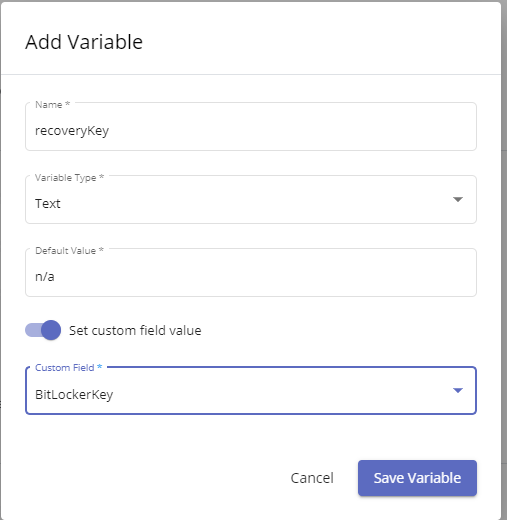
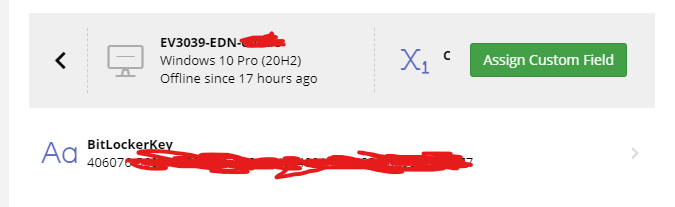
 A number of folks have requested the ability to manage bitlocker with Pulseway, so I thought I would share how I am doing this with Powershell scripts and Pulseway's custom fields feature. First, you will need to create a custom fields in Pulseway (Automation Tab --> Custom Fields). This fields should be a text variable that has the system context. I personally have 3, BitlockerKey, Protection Status (On/Off), and BitLockerVolumeStatus. BitlockerKey is probably the one most people will care about. . After Configuring the Custom fields, you will then need to create your PowerShell script. Notice you have inputs and outputs. You will want to click New for output. Name it what you wish, ensure it is a text variable type, and then turn on "set Custom Field Value" Now we toggle the flag for it being a windows powershell script. You should see in the top that it has created a comment #outputs with your defined output variable assigned the default value you gave it. Now we have our script: Update as of 4/18/2021, script now tracks 3 custom fields and will account for if a drive is encrypted but protection is off and no protectors have been added yet. # Outputs $ProtectionStatus = "na" $recoveryKey = "na" $VolumeStatus = "na" #region functions function Start-BitlockerEnable { Enable-BitLocker -MountPoint c: -EncryptionMethod XtsAes128 -UsedSpaceOnly -TpmProtector $today = Get-Date $scheduledtime = $today.Date.AddHours(23) [int]$SecondsToMidnight = ($scheduledtime - $today).TotalSeconds shutdown /r /t $SecondsToMidnight msg.exe * "Bitlocker Encryption has been enabled. A reboot is needed before the encryption will apply and has been scheduled for $scheduledtime local time. You can reboot before this if you prefer." #start-sleep 90 #msg.exe * "This Computer will reboot in 30 seconds to bitlocker Encryption" #start-sleep 30 #Restart-computer -force } #endregion functions #region execution $BitLockerStatus = Get-BitLockerVolume -MountPoint c: if ((Get-Tpm).tpmpresent -eq $true) { #If Volume is in the process of encrypting or decrypting the Volume status will not say fully. Don't make changes when it changes if (($BitLockerStatus.ProtectionStatus -match 'off') -and ($bitlockerstatus.VolumeStatus -notmatch 'progress')) { #NoBitlocker is enabled so run it. if ($BitLockerStatus.VolumeStatus -eq 'FullyDecrypted') { $recoverykey = $BitLockerStatus.KeyProtector | Select-Object -ExpandProperty recoverypassword if(!($recoveryKey)){ Add-BitLockerKeyProtector -MountPoint c: -RecoveryPasswordProtector } $newStatus = Get-BitLockerVolume -MountPoint c: $recoverykey = $newStatus.KeyProtector | Select-Object -ExpandProperty recoverypassword Start-Process -FilePath "$env:PWY_HOME\CLI.exe" -ArgumentList ("setVariable recoverykey ""$recoverykey""") -Wait if ($newStatus.KeyProtector -match 'Recovery') { Start-BitlockerEnable } } #Bitlocker must be Partially enabled where drive is fully encrypted, but protection is off and no protectors exist. #Typically this is using xtsAES128 so you may wish to disable-bitlocker, then re-enable it with your protectors and prefered encryption level. else{ Disable-BitLocker -MountPoint 'c:' $decryptInProgress = $true While($decryptInProgress -eq $true){ $decryptstatus = Get-BitLockerVolume -MountPoint 'c:' if($decryptstatus.VolumeStatus -match 'progress'){ Start-Sleep 2 } else{ $decryptInProgress = $false } } Add-BitLockerKeyProtector -MountPoint c: -RecoveryPasswordProtector $newStatus = Get-BitLockerVolume -MountPoint c: $recoverykey = $newStatus.KeyProtector | Select-Object -ExpandProperty recoverypassword Start-Process -FilePath "$env:PWY_HOME\CLI.exe" -ArgumentList ("setVariable recoverykey ""$recoverykey""") -Wait if ($newStatus.KeyProtector -match 'Recovery') { Start-BitlockerEnable } } } #BitLocker should already be enabled so log keys, volume status etc. else { $recoverykey = $BitLockerStatus.KeyProtector | Select-Object -ExpandProperty recoverypassword $ProtectionStatus = $BitLockerStatus.ProtectionStatus $VolumeStatus = $BitLockerStatus.VolumeStatus Start-Process -FilePath "$env:PWY_HOME\CLI.exe" -ArgumentList ("setVariable recoverykey ""$recoverykey""") -Wait Start-Process -FilePath "$env:PWY_HOME\CLI.exe" -ArgumentList ("setVariable ProtectionStatus ""$ProtectionStatus""") -Wait Start-Process -FilePath "$env:PWY_HOME\CLI.exe" -ArgumentList ("setVariable VolumeStatus ""$VolumeStatus""") -Wait } } else { $recoverykey = 'NoTpm' Start-Process -FilePath "$env:PWY_HOME\CLI.exe" -ArgumentList ("setVariable recoveryKey ""$recoveryKey""") -Wait } #endregion execution You can modify the above script as you wish. I personally have gone with a bit of a cautious approach where it will not skip the hardware check which will reboot the pc, but for me I prefer this approach to having it encrypt the drive without checking tpm is all good which could then result in the drive being encrypted and locking out the end user. At the end of all this, you now should be able to Both Enable bitlocker encryption as well as pull your recovery keys from pulseway like so :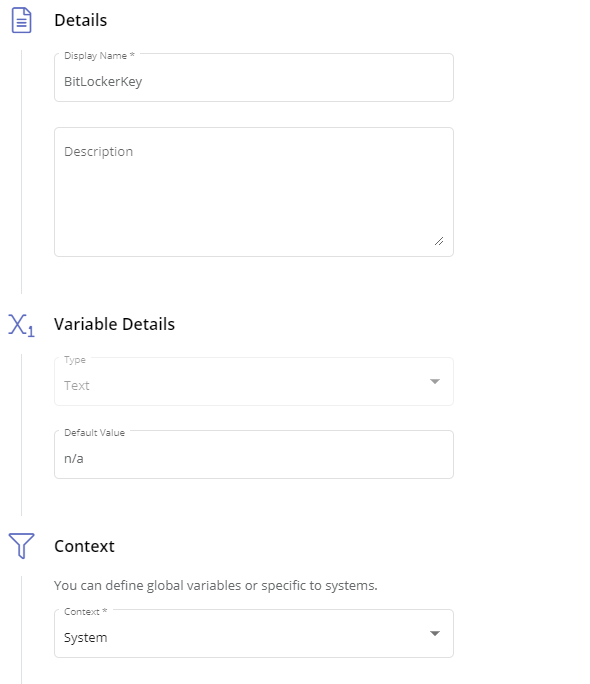
-
 It is vital to comprehend the difference in execution context between testing in Powershell ISE and using the Pulseway agent. While testing with Powershell ISE is done under a specific user account, Pulseway runs scripts as Local System. This variation may cause keys to be written to the physical registry location for Current Users after successful execution.sso login
 -
 I made a install script for Dropbox to do a Silent install. UPDATED VERSION 2 With auto detect if Invoke-WebRequest exists Improvements are welcome! Change the version if needed in the Source URL: https://www.dropbox.com/downloading?full=1&os=win # Silent Install Dropbox # Download URL: https://www.dropbox.com/downloading?full=1&os=win # Path for the workdir $workdir = "c:\ictwebsolution\" # Check if work directory exists if not create it If (Test-Path -Path $workdir -PathType Container) { Write-Host "$workdir already exists" -ForegroundColor Red} ELSE { New-Item -Path $workdir -ItemType directory } # Download the installer $source = "https://www.dropbox.com/download?full=1&plat=win" $destination = "$workdir\dropbox.exe" Invoke-WebRequest $source -OutFile $destination # Start the installation Start-Process -FilePath "$workdir\dropbox.exe" -ArgumentList "/S" # Wait XX Seconds for the installation to finish Start-Sleep -s 60 # Remove the installer rm -Force $workdir\dropbox* For Windows 7 please change $source = "https://www.dropbox.com/download?full=1&plat=win" $destination = "$workdir\dropbox.exe" Invoke-WebRequest $source -OutFile $destination To $WebClient = New-Object System.Net.WebClient $WebClient.DownloadFile("https://www.dropbox.com/download?full=1&plat=win","$workdir\dropbox.exe") Since Powershell in Windows 7 does not support the Invoke-WebRequest Please let the user Log Off and On again after the installation of dropbox, then Dropbox wil auto start.
 -
 After changing the internal IP on a client's network, I can no longer connect to the workstations using the Remote Control. I still can connect through the command prompt and PowerShell. All those machines are Windows 10/11. However, I can still Remote Control the Windows Server 2019 server. Always getting this error: Any ideas?