_a9c1b4.png)
_49ee3f.png)

GTDFW
-
Joined
-
Last visited
Posts posted by GTDFW
-
-
-
-
-
-
-
-
-
-
-
-
Am I supposed to see a Windows Server Backups under Server Modules in the Apps (web, iPad, and iPhone)?
The screen shots in the user manual show it listed but I an not seeing it under Server Modules on any Server.
Am I missing something???
-
-
I am getting an error when I click Validate Requirements and Settings, under Monitor and Manage Windows Backups.
The error is (Unsupported operating system version: 6.0.6002).
The server is running Windows Server 2008 Standard Service Pack 2.
I have tested this on three servers and get the same error.
I have configured Power shell impersonation.
-
We all have been there. The bottom line is you have to spend money to make money. The small cost of paying for the PC Monitor client will be greatly offset by how much work it can generate for you at your clients.
-
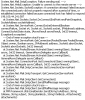
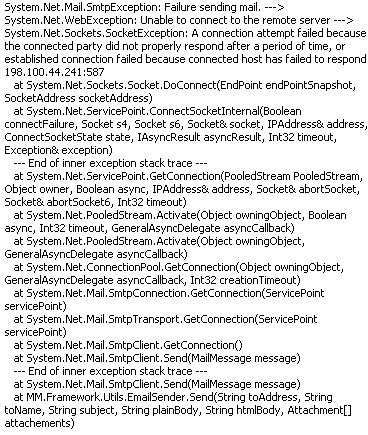
I cannot email a file. The systems say the file was sent, but i never receive it.
I I go into the PC Monitor Manager and Send Test Email. I get the following message. See Screen Shot.
-
-
Is there any way to increase the session inactivity timeout on my.pulseway.com?
If not, this may be a feature request for a future release.
-
-
If I have a notification alert (set to Push) , and go onto my iPhone to clear the alert. I still see the badge on my iPad even though it was cleared.
When I go onto the app on my iPad the bade disappears.
Should the bad on my iPad automatically go away when I clear it from my iPhone?
-
-
Are there any plans for an inventory report? (Device specs, software etc.)
All devices
By group
By device
-
I am new to PC Monitor, Love it.
I would also like to see a difference between icons for Servers, Workstations (PC's) and Laptops.
This would help out a lot.
Also being able to add a group to a group. Example it I have a customer as a group XYZ Company, and within that group be abel to have a server and workstation group.
-
-

Session Ended time for web app
in Web Application
Thanks for the reply but I am using PC Monitors servers.