
Jump to content
View in the app

A better way to browse. Learn more.

Pulseway

A full-screen app on your home screen with push notifications, badges and more.

To install this app on iOS and iPadOS
  1. Tap the Share icon in Safari
  2. Scroll the menu and tap Add to Home Screen.
  3. Tap Add in the top-right corner.
To install this app on Android
  1. Tap the 3-dot menu (⋮) in the top-right corner of the browser.
  2. Tap Add to Home screen or Install app.
  3. Confirm by tapping Install.

MichaelHer_NavNet

Members
  • Joined

  • Last visited

Everything posted by MichaelHer_NavNet

  1. Thank you. I did have a device enrolled and was able to get that configured. I assume 3rd party apps are managed the same way though the Apple MDM profiles? Also is there any reporting on the status of this. How can I determine if there are devices that have failed to update?
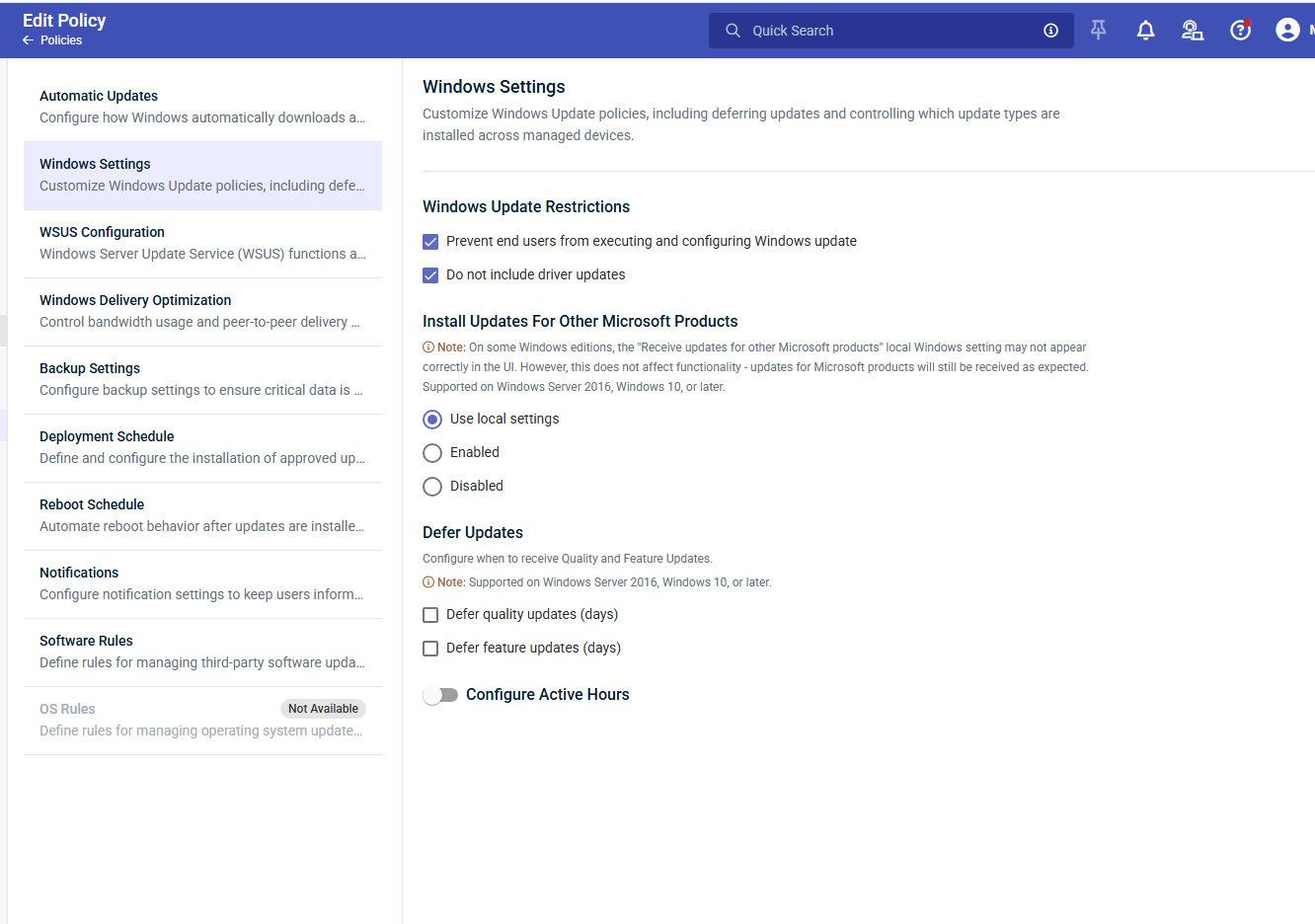
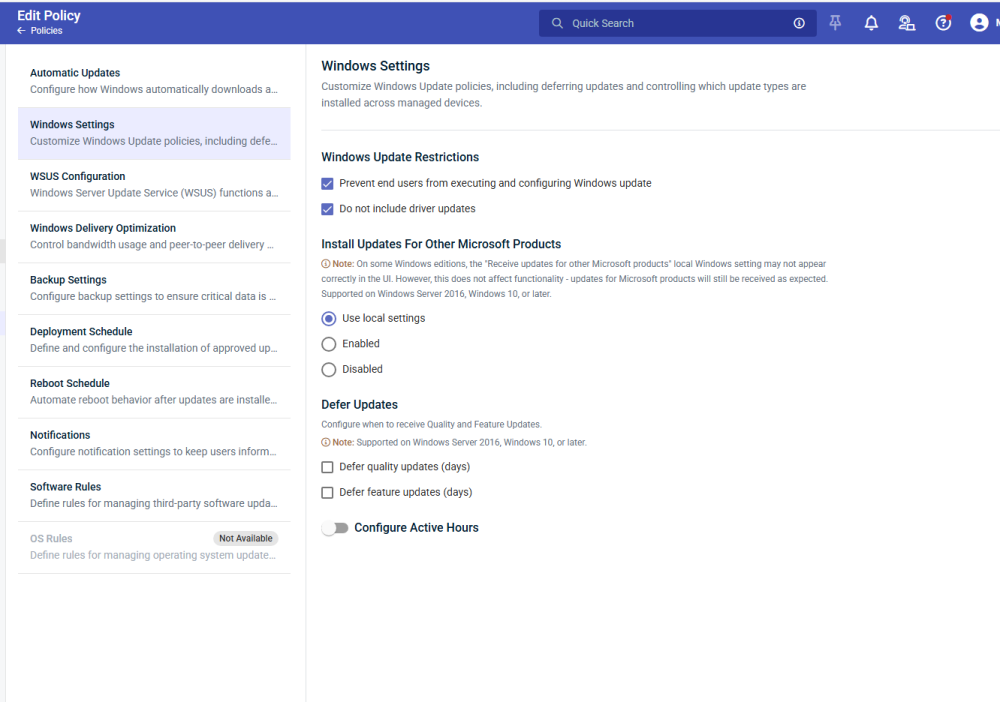
  2. I am trying to setup Patch polices for MacOS, following this guide. Creating/editing Patch Management policies | Pulseway Help Center But in my policy, I don't see anything for MacOS
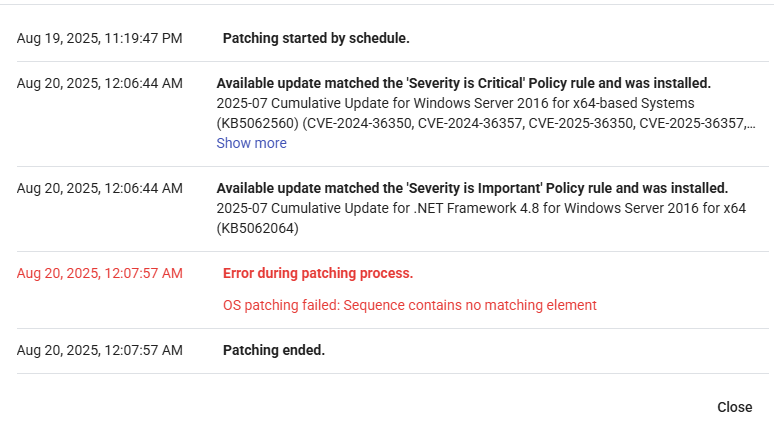
  3. What does the error OS patching failed: Sequence contains no matching element mean?

Configure browser push notifications

Chrome (Android)
  1. Tap the lock icon next to the address bar.
  2. Tap Permissions → Notifications.
  3. Adjust your preference.
Chrome (Desktop)
  1. Click the padlock icon in the address bar.
  2. Select Site settings.
  3. Find Notifications and adjust your preference.