
_a9c1b4.png)
_49ee3f.png)


MrMattiPants
Members
-
Joined
-
Last visited
-
Sure, I get that. I was simply testing via my account, with the assumption that it could be changed later. Unfortunately, there seems to be no way to change the outbound email address once you've authenticated for the first time. Fortunately, I was able to restore the original App Registration and re-connect it to my personal account. I suppose I'll try generating a new Client Secret to see if it will let me authenticate via our dedicated SMTP Account.
-
Both my employer and one of our clients are experiencing this issue. I've written up a full report of the issue, in the following post. https://forum.pulseway.com/topic/5486-oauth-in-m365-change-the-fromreply-to-address/#comment-18207 Any assistance you can provide will be greatly appreciated. Thank you in advance.
-
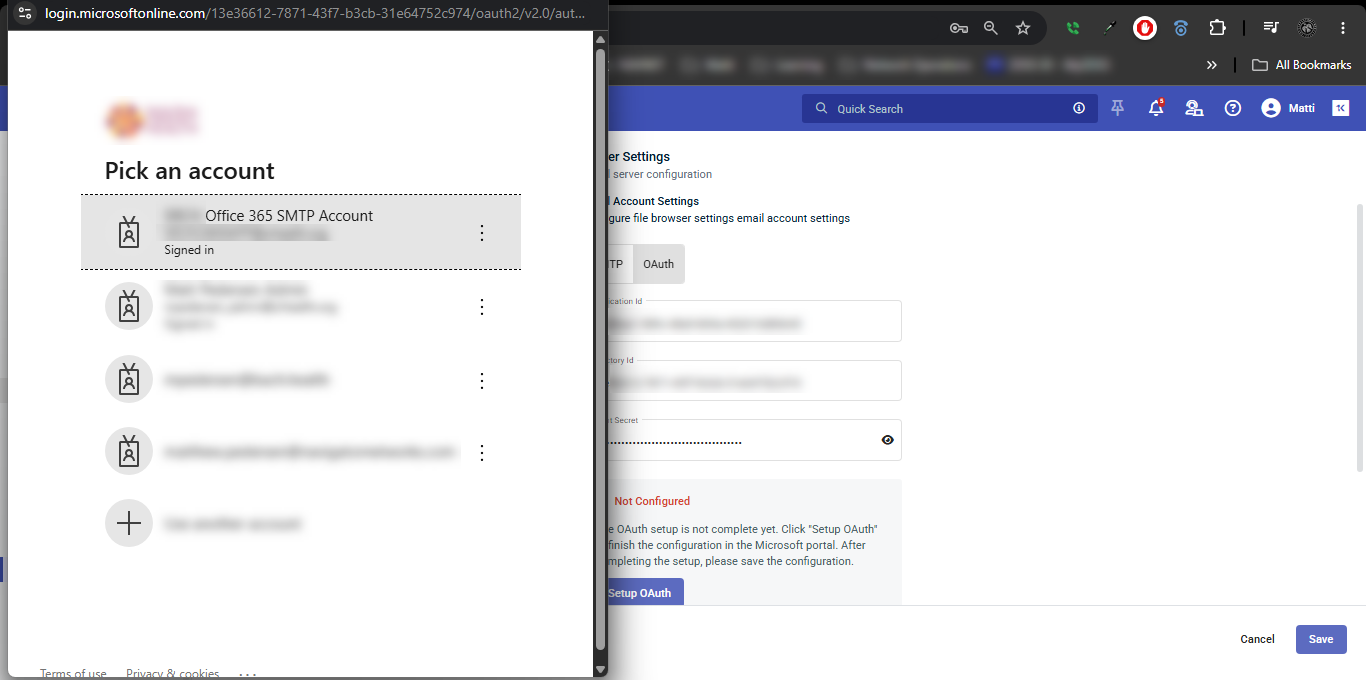
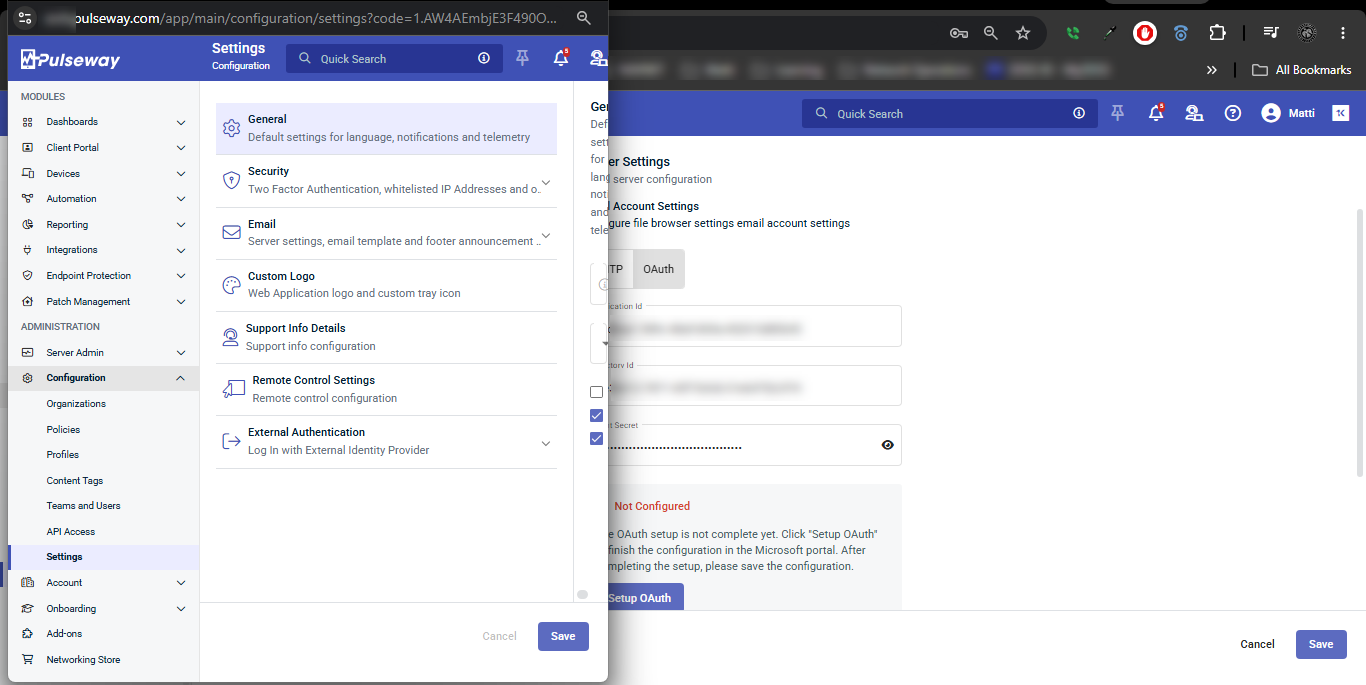
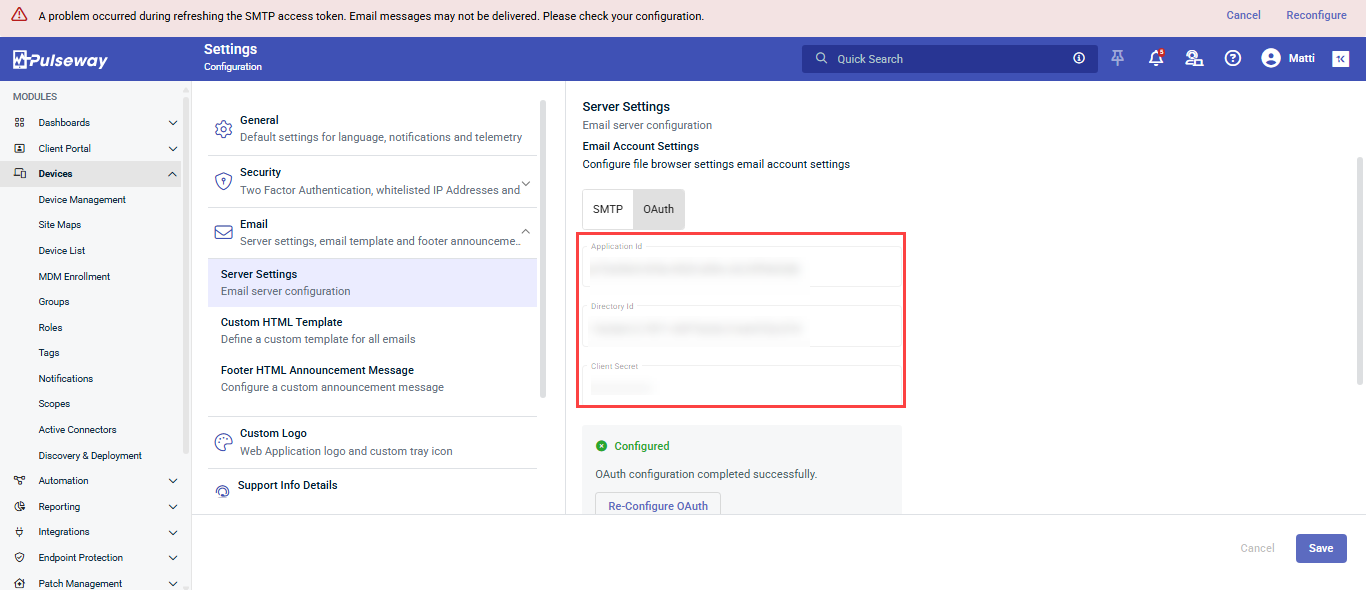
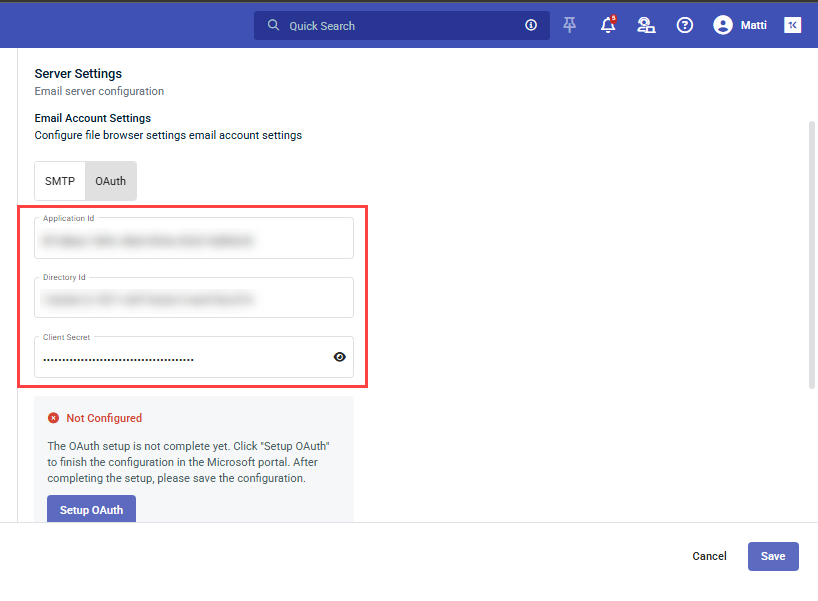
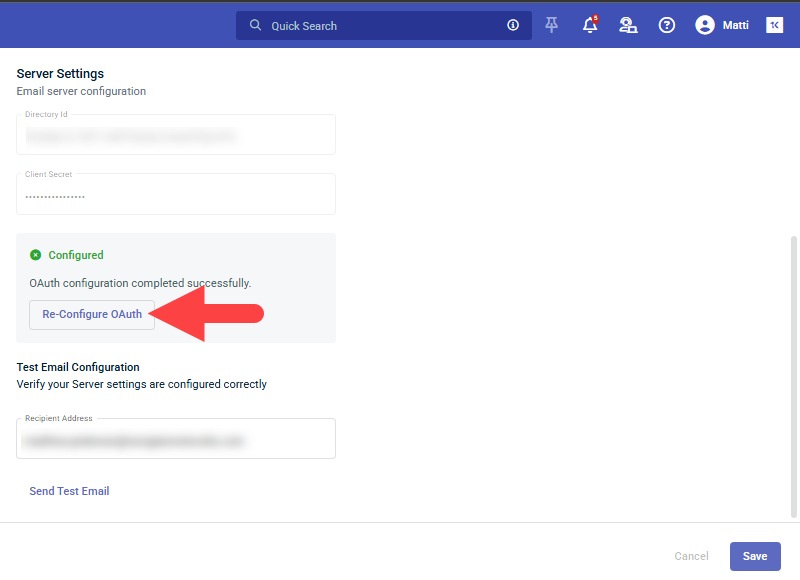
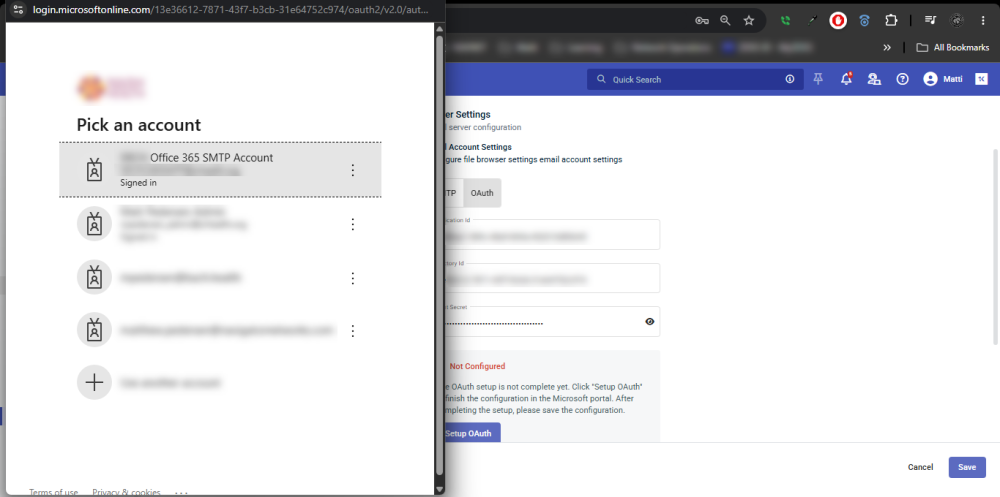
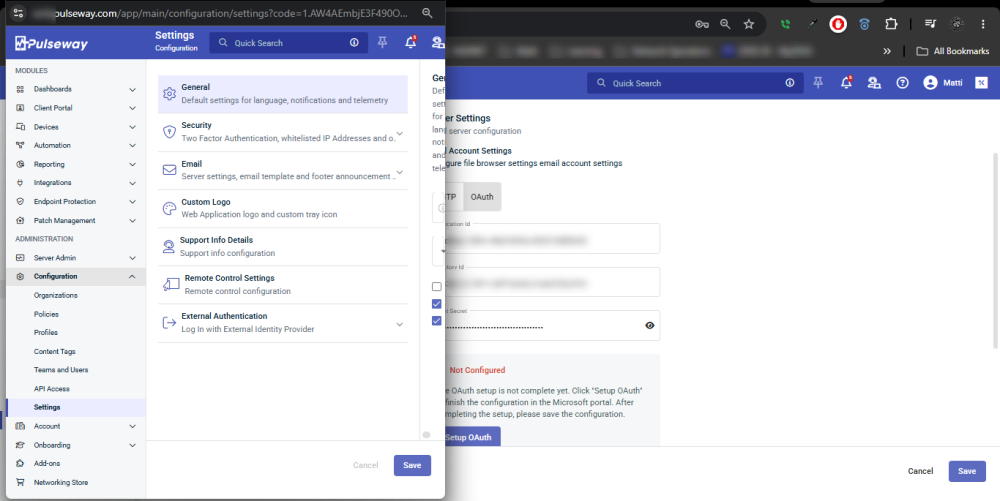
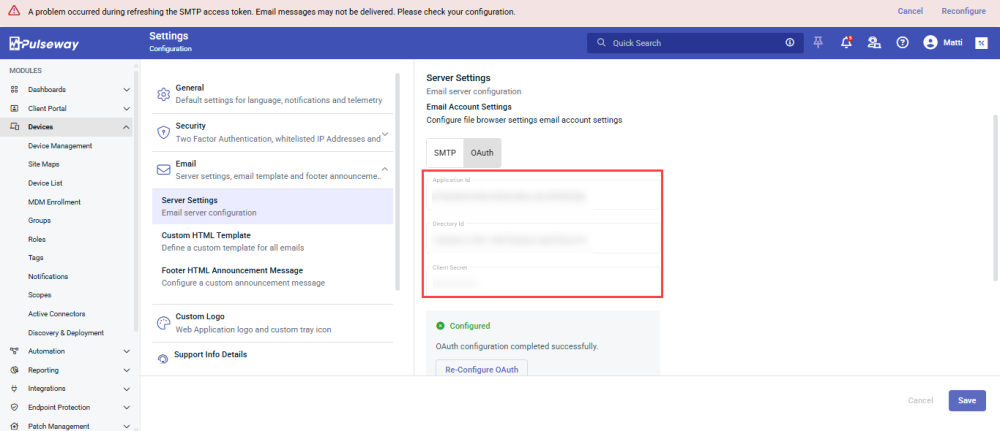
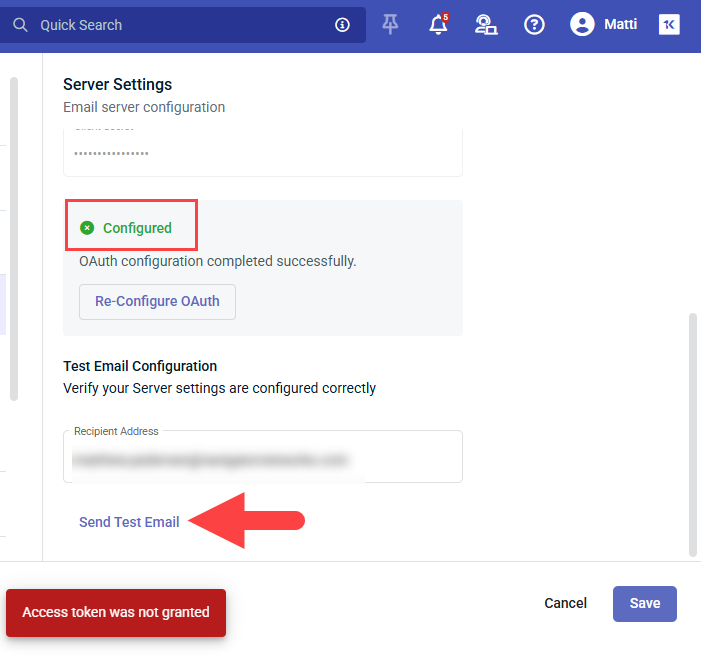
We're running into this same issue. I've come across a few bugs in regard to the OAuth 2.0 Email Settings. Firstly, when you attempt to "Re-Configure OAuth", it won't even open the login.microsoftonline.com window, to allow you to Select an alternative Account. It simply activates the "Application Id", "Directory Id" and "Client Secret" Fields, but after re-submitting, it assumes that you want to use the same Email Account/Credentials. I actually had to completely Delete our original "Pulseway RMM" App Registration and create a new one, from scratch, with a new "Application Id", "Directory Id" and "Client Secret", before it would the Pulseway Email Settings Web UI would actually open the login.microsoftonline.com Window, allowing me to select another Email Account. Unfortunately, there is a bug in this process, as well. I say this because after successfully signing into the correct O365 Account, it doesn't return to the original Pulseway Email Settings window, but rather, it loads the Email Settings page directly into the Microsoft Sign-in window. Worse yet, when I maximize this window, I find that the OAuth Form contains the "Application Id", "Directory Id" and "Client Secret" from the old/Deleted App Registration, which still says that it is "Configured", for some reason. Of course, when you attempt to click on the "Send Test Email" option, it immediately fails, with an "Access Token was Not Granted" Message. I've gone over the App Registration Settings multiple times and I am confident that the App Registration Settings are correct. That being said, there appears to be no working method for changing an OAuth SMTP Email Address, at least for the present time. Any assistance you can provide with this issue, will be greatly appreciated. Thank you, in advance. P.S. It might also be a good idea to update your documentation to inform admins that the account you're authenticating with, will be the account from which Emails/Alert messages will be sent (since many apps require "Application" MS Graph API Permissions, as opposed to "Delegated" Permissions).
-
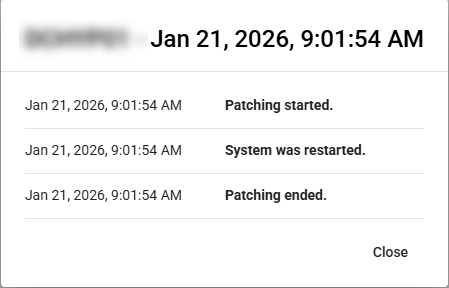
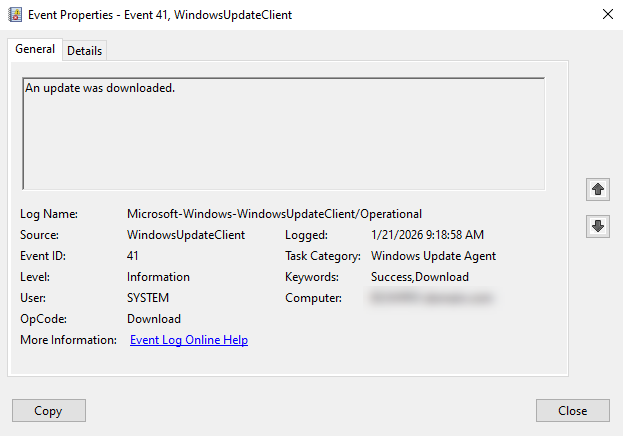
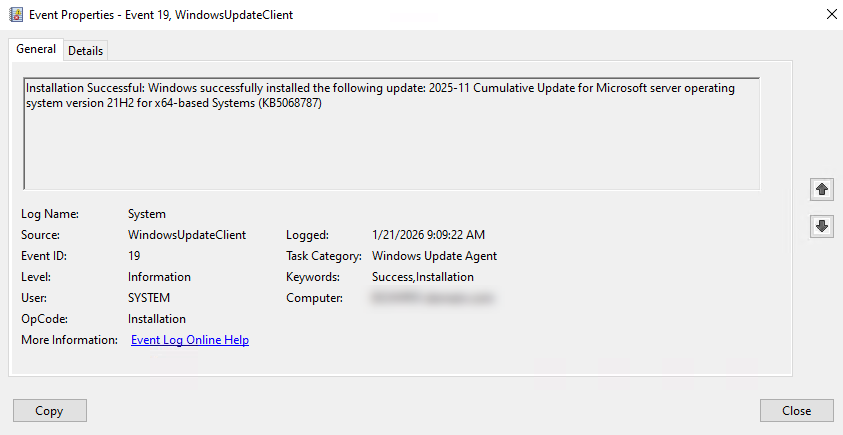
Our Servers are scheduled to Install Windows Updates at 11:30 PM PST on each 3rd Wednesday of the month, then Reboot at 1:00 AM PST the following Thursday morning. However, for some reason, one of our Hyper-V Hosts decided to Install a Cumulative Update, then immediately Reboot, at 9:00 AM PST on Wednesday Morning. The Windows Update logs confirm that the Updates were deployed, via Pulseway (PCMonitorSrv.exe). {D934947F-04B7-4F2C-86B0-B52D9C5E394A} 2026-01-21 09:09:18:139-0800 1 183 [AGENT_INSTALLING_SUCCEEDED] 101 {950FCABA-70B8-4039-9ECF-0B0D80D79A9B} 1 0 <<PROCESS>>: PCMonitorSrv.exe Success Content Install Installation Successful: Windows successfully installed the following update: 2025-11 Cumulative Update for Microsoft server operating system version 21H2 for x64-based Systems (KB5068787) JBNdiCryxkKHTHpR.8.0.0.3.0.0
-
-
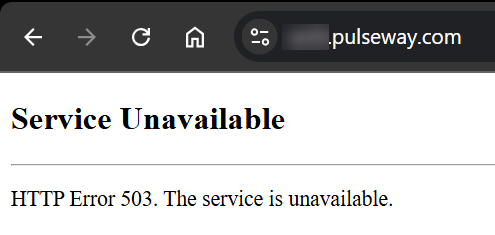
Has anyone else been experiencing issues w/ their pulseway.com Site/Portal? It was recently brought to my attention that the site/portal may have been down for a while. I was able to confirm this from my end, as the following screenshot suggests. I figured I'd check in, to see if there were any similar experiences.
-
Sure, I don't mind testing out a Workflow. However, it does look like both Tasks and Workflows both allow you to Set the Time Zone, etc. Regardless, I'll give it a try and get back to you on the results. Thank You.
-
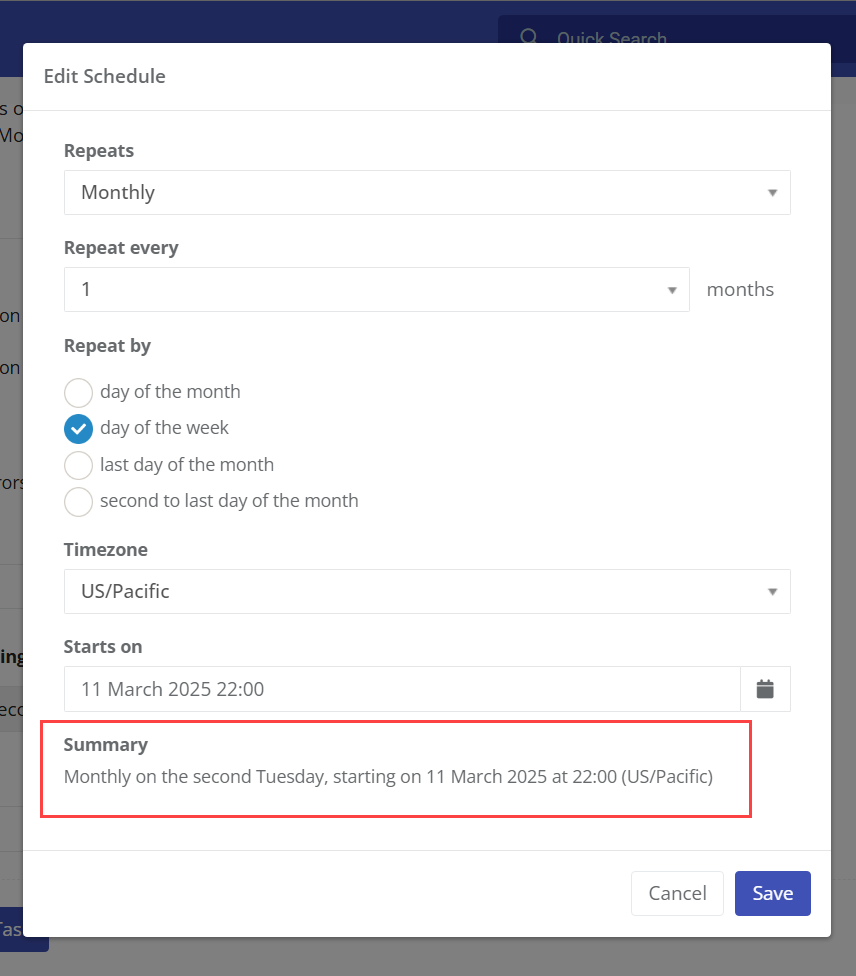
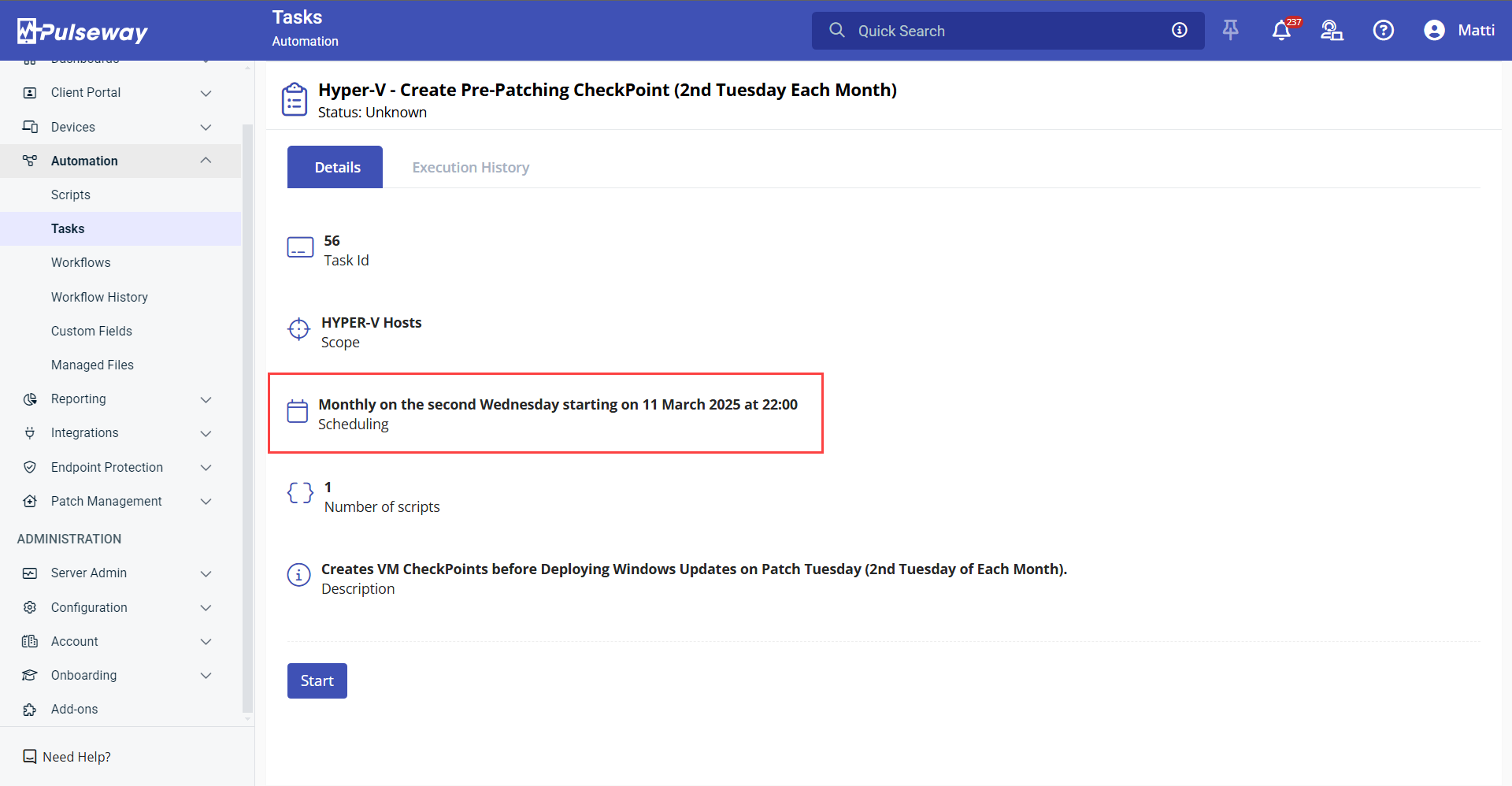
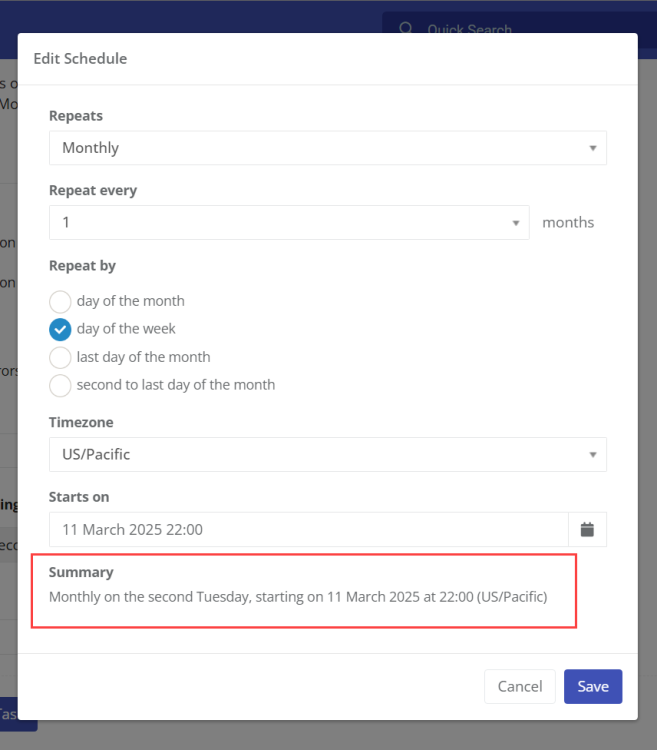
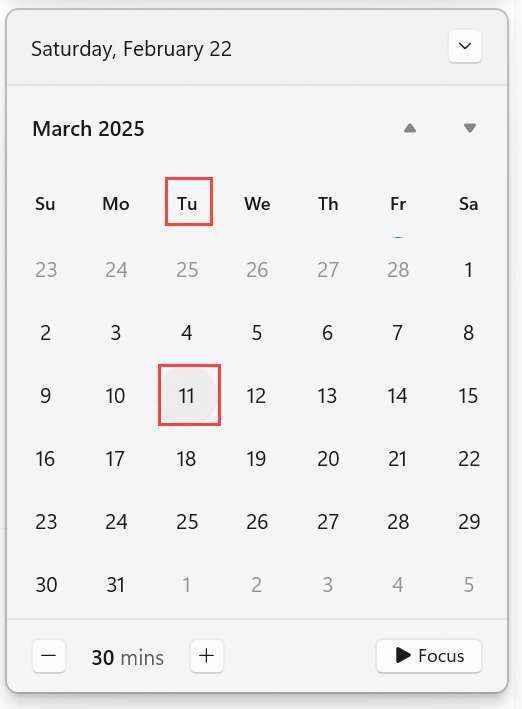
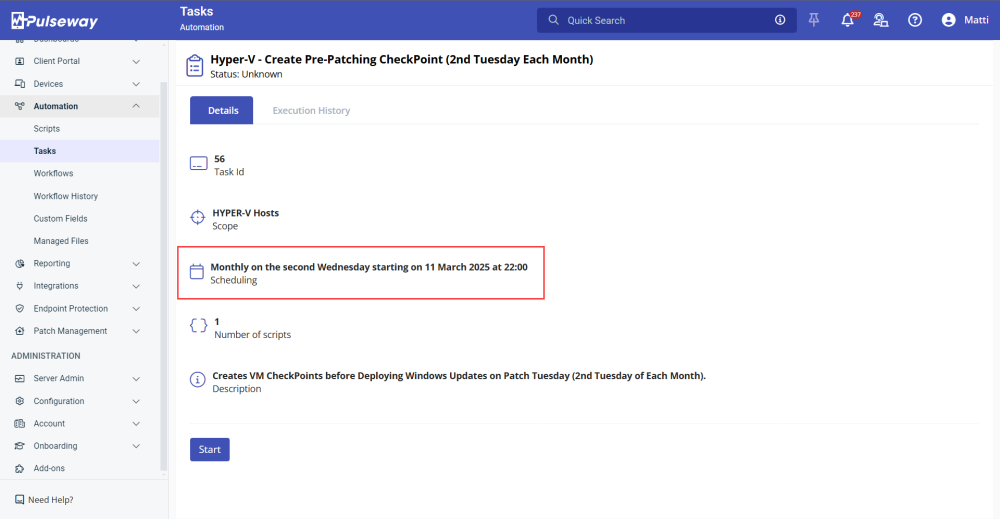
It appears that you can also choose a Time Zone, in the Task Schedule Settings. I have included a few Screenshots, which shows one of the Issues that I'm coming across. As you can see, in the First Image, the Starting Date/Time is Set as "Tuesday, March 11th, 2025" at "10:00 PM", with the Time Zone is Set to "US/Pacific". The Second Image confirms that "March 11th, 2025" should in-fact be a "Tuesday:". Unfortunately, the Third Image highlights the Problem, because it now seems to believe that "March 11th, 2025" is a "Wednesday". As previously mentioned, I'm fairly certain that this is likely related to the fact that my Computer Time Zone is in CST Time, simply because "10:00 PM PST" on Tuesday night is equal to "12:00 AM CST" (aka Midnight) on Wednesday Morning.
-
I noticed that several of the Schedules on Tasks that I've created, seem to be creeping. I suspect that this is likely due to the fact that I work remotely from Wisconsin (in the CST Time Zone), while my employer and many of our customers are located in California (in the PST Timezone). For instance, I set the Schedule to Run every 2nd Thursday at 12:00 AM CST (the equivalent of Wednesday 10:00 PM PST) and a week or two later, I find that it is running a full 24 hours behind schedule. That said, you may want to look into this, as the Schedules definitely don't seem to be functioning reliably, across Timezones, etc.